This is the last and final part of a 3 post series on creating a vCOps Cluster Utilization Dashboard. Before you read or implement this part on your instance of vCenter Operations Manager, you need to ensure that you follow the following articles:-
STEP 2 – Import the dashboard in vCOps Custom UI
1- Login to vCOps Custom UI with an ID with Administrative Privileges.
2- Click on the Import Option under Dashboard Tools.

Part 2 – Creating Supermetrics for Cluster Utilization Dashboard in vCOps!
So from the last part of this series you have the Supermetrics ID of all the Supermetrics which you have created in your environment. We have 8 supermetrics with id’s from 1 to 8.
To begin with download the following XML file which has the code for the Utilization Metrics:-
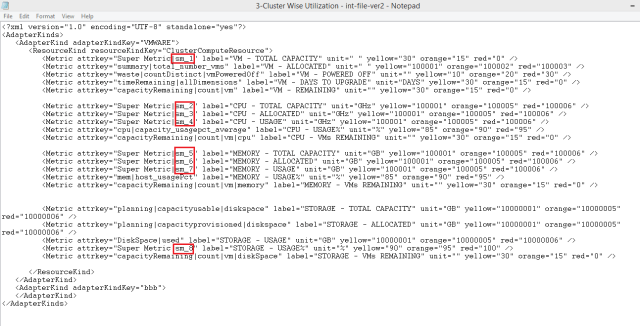
Open this file in a notepad after downloading it and now replace the shown metrics with the supermetrics ID which you have captured in the part 2 of this post. For me the Supermetrics ID is from 1 to 8 & I have highlighted the same. You need to edit the file with the supermetric ID corresponding to your instance of vCOps.
WARNING – DO NOT CHANGE ANYTHING ELSE IN THE FILE NOR THE NAME OF THE FILE. LEAVE EVERYTHING AS IT IS.
Here is how the file will look like and the values you need to edit.

STEP 1 – Place the edited xml file in a specific location of the UI VM
1- Use an SCP software to login to the UI VM using the root credentials. I am using WinSCP.
2- Change the directory to the following location /usr/lib/vmware-vcops/tomcat-enterprise/webapps/vcops-custom/WEB-INF/classes/resources/reskndmetrics
1- Use an SCP software to login to the UI VM using the root credentials. I am using WinSCP.
2- Change the directory to the following location /usr/lib/vmware-vcops/tomcat-enterprise/webapps/vcops-custom/WEB-INF/classes/resources/reskndmetrics
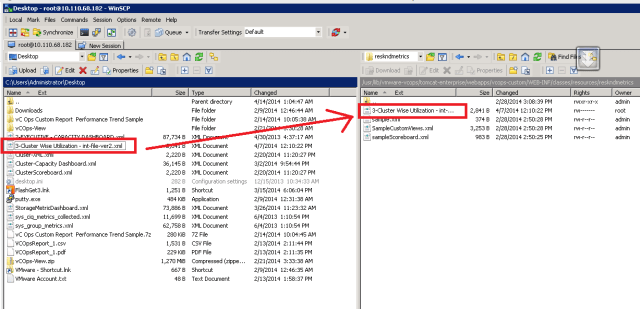
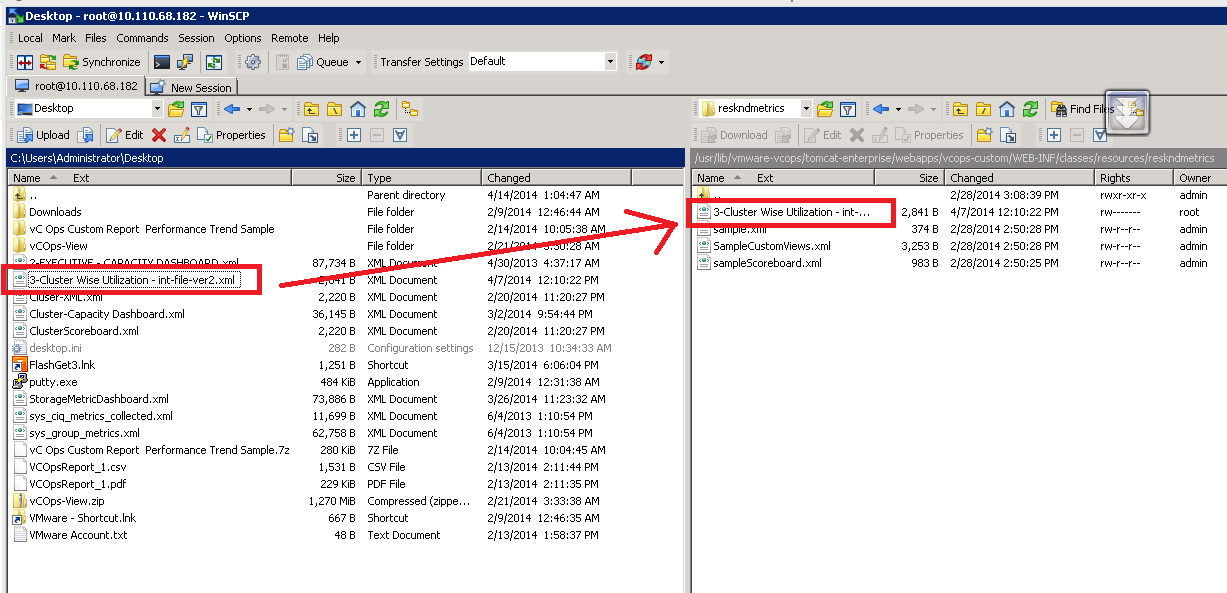
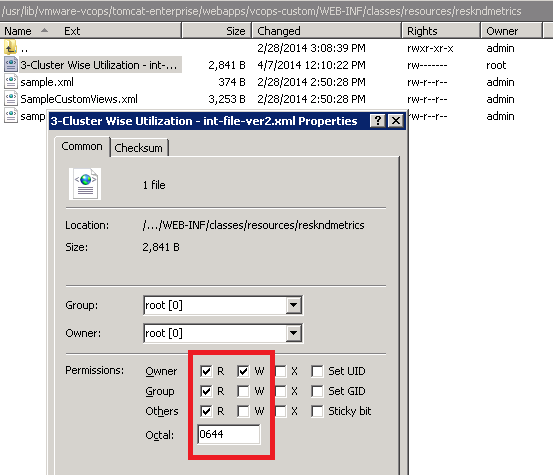
3- Drag and drop the 3-Cluster Wise Utilization – int-file-ver2.xml file from your system where you downloaded it to this directory as shown in the screenshot below.
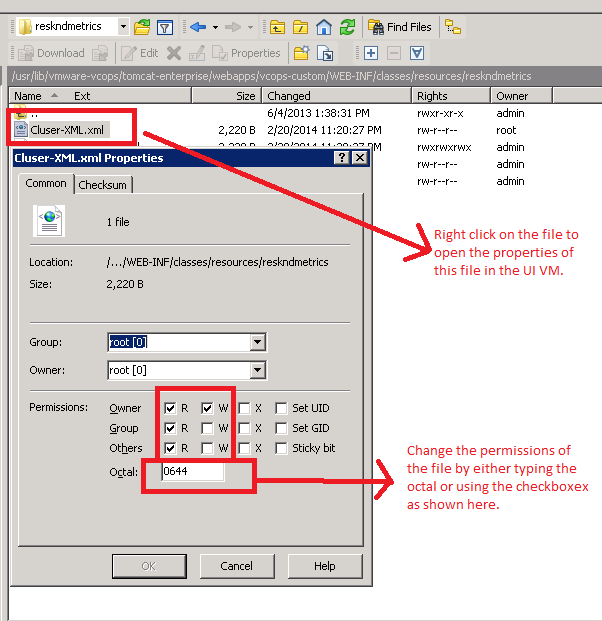
4- Right click on the target file and click on Properties to change the permission level to 644 (For Read & Execute rights) as shown below.
You are done with STEP 1. Let’s look at STEP 2. Before that download the dashboard xml which you need to import from here:-
STEP 2 – Import the dashboard in vCOps Custom UI
1- Login to vCOps Custom UI with an ID with Administrative Privileges.
2- Click on the Import Option under Dashboard Tools.

3- Browse to the location where you have saved the 3-Cluster Wise Utilization-DB-ver2 and click on Import.
4- You will get a dialog box that your dashboard it successfully imported. Close the same and click on the Dashboards Menu to find a new dashboard named “CLUSTER WISE UTILIZATION”
5- Click on this and you will get the dashboard which we saw in the beginning of this post. Ain’t it simple 🙂
6- In case you do not see a blank dashboard, Edit the Resources Widget on the Left Pane, Browse to Resource Kinds – > Cluster Compute Resource -> Click on All Attributes once and click on OK. This will get you the list of the clusters and you will be good to go!!
Hope you enjoy this dashboard 🙂
Closing this series. Will see you with another custom dashboard soon. Till then!!
********************************Update 29-July-2014*******************************
As per the comments from Jeff and Kenneth, post implementing the steps mentioned in this 3 part blog post, they had a Blue Box with a question mark and No Data written on the CPU-TOTAL CAPACITY and MEMORY-TOTAL CAPACITY
The Blue Box represents that the data is not being collected for the metric for that particular object. On investigation it was found that the metrics of CPU Total (Mhz) and Memory Total (Kb) were not being collected on the vCOps instance since they were running a balance profile for metrics collection. Here are the steps to enable collection.
Login to Custom UI – Environment – Configuration – Attribute Packages – Select Adapter Kind as VMware Adapter – Select Resource Kind as Cluster Compute Resource – Select Default Attributes and Click on OK – Expand CPU Usage and Check Total CPU – Expand Memory and Check Total Memory) – Click on Okay. Log out of vCOps and login after 5 minutes.
Share & Spread the Knowledge!!
 sunnydua.com